How to Track Attendance Across Recurring Google Meet Meetings
Google Meet sends a separate attendance report for every meeting. Here's how to combine them by participant across a recurring class or course, with a Google Sheets method and an automatic one.
To track attendance across a recurring Google Meet meeting, you need an attendance record for each session, then you need to combine those records by participant.
Google Meet gives you the first part and stops there. You can do the second part yourself in Google Sheets... or use an attendance tool that groups the meetings for you.
This guide covers both:
- Google Sheets. Free, and it works with Google's own reports. It takes a few minutes of copying and pasting after every session.
- AttendList. Records every meeting automatically and groups a recurring class into one view. I built it, so read that section knowing I'm biased.
Why individual Google Meet reports aren't enough
Google Meet's built-in attendance tracking emails the organizer one Google Sheet per meeting, listing each participant's name, email, join time, leave time and duration. (New to it? Here's how to get a Google Meet attendance report.)
That answers "who was in this meeting?". It can't answer "how many classes has this person attended?", because every report is a separate file.
Take a course that meets 2x a week for 8 weeks. By the end you have 16 separate spreadsheets to manage.
To find out whether one student attended 80% of the course, you have to open all 16 and look for their name in each.
Recurring meetings are also where most of the work is.
Across all AttendList meetings between April and September 2026, only about 9% of Google Meet codes were used on three or more separate days within a month.
However, those codes accounted for 44% of all meetings:
| Meet codes | Meetings | |
|---|---|---|
| All codes | 48,968 | 90,071 |
| Codes used on 3+ separate days within a month | 4,287 (9%) | 39,988 (44%) |
That's across all AttendList accounts worldwide, counting meetings of five minutes or longer. While a reused code isn't always a class (it could be a standup or a standing 1:1), it gives us a rough idea of how much meeting activity is recurring, rather than a one-off.
Method 1: Track recurring attendance with Google Sheets
The goal is one sheet with participants in rows and sessions in columns, like this. It shows the first five sessions of that eight-week course, with fictional students:
| Student | 6 Jan | 8 Jan | 13 Jan | 15 Jan | 20 Jan | Attended | % | |
|---|---|---|---|---|---|---|---|---|
| [email protected] | Ava O. | P | P | P | P | P | 5 / 5 | 100% |
| [email protected] | Ben W. | P | P | A | P | P | 4 / 5 | 80% |
| [email protected] | Chloe T. | P | A | P | P | A | 3 / 5 | 60% |
| [email protected] | Dan R. | P | P | P | A | P | 4 / 5 | 80% |
| [email protected] | Emma L. | A | P | P | P | P | 4 / 5 | 80% |
The sheet needs three parts:
- A roster. Everyone who is supposed to attend, one row each, identified by a stable identifier, such as an email address.
- A log. One running tab where, after each session, you paste the email and duration columns from Google's report, along with the session date.
- The grid. One column per session. A
COUNTIFSformula marks each person P if their email appears in the log on that date, and A if it doesn't. The percentage is their P's divided by the sessions held so far.
Why a roster? A Meet report only lists people who joined. Someone who misses a session isn't in that session's report at all, so a roster is the only way to see absences.
After the first setup, the weekly job is one paste into the log. The grid updates itself.
The catch is that the grid matches people by email, so it breaks when someone joins from a personal account, dials in by phone, or shares a device with someone else. Skim each report before you paste it. This is much harder to untangle in week eight.
Method 2: Track recurring sessions automatically with AttendList
If you'd rather not paste reports every week, this is the job I built AttendList's recurring sessions for. It tracks your recurring Google Meet sessions automatically.
- Connect Google Meet. Sign in to AttendList with your Google account. This works on any Google account, including free Gmail.
- Run your meetings as normal. AttendList records attendance in every Google Meet you join, in the background. There's nothing to switch on per session. Here's how automatic tracking works.
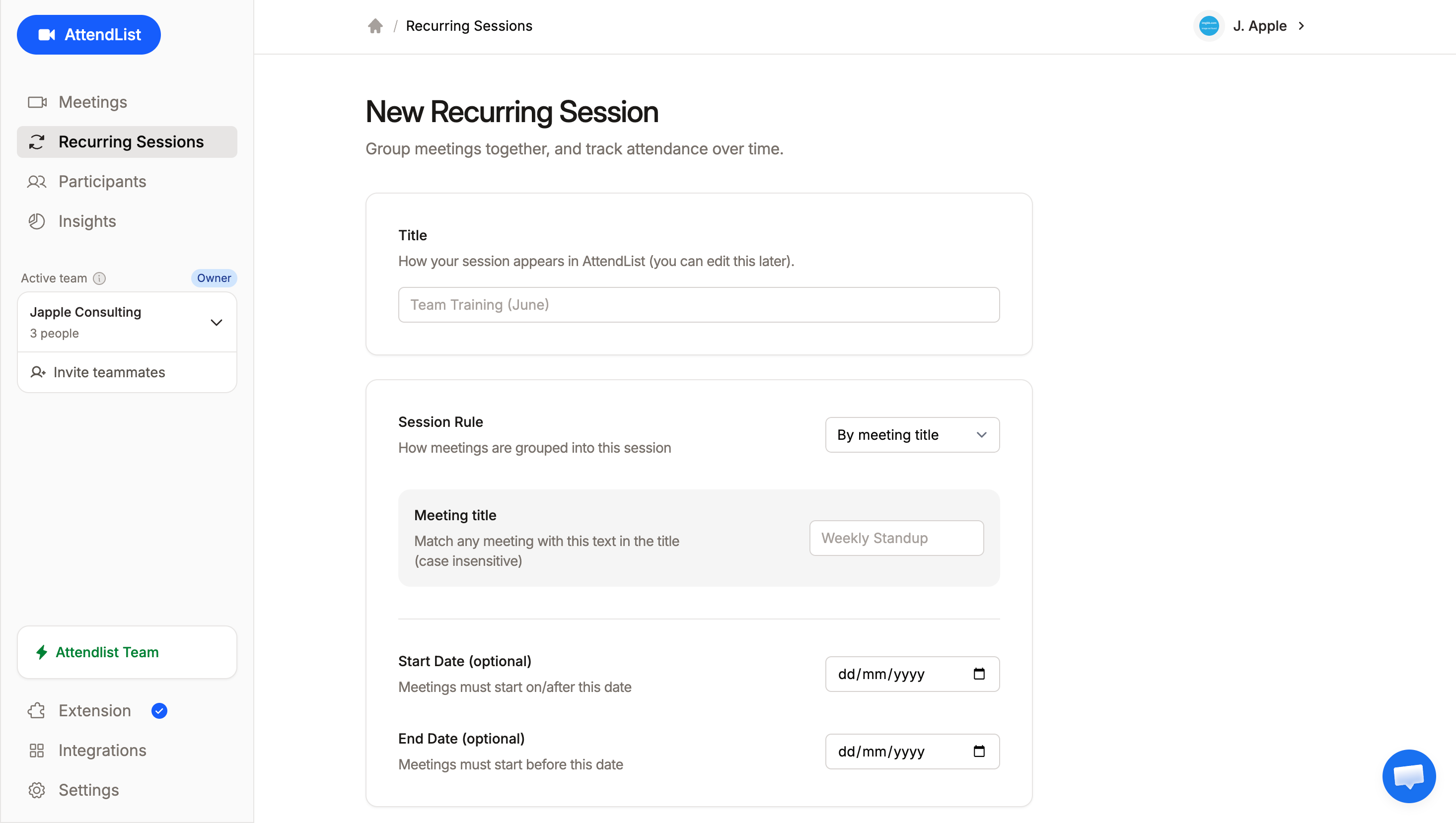
- Create a recurring session. Go to Recurring Sessions, click + New Session, and give it a title. Then choose how meetings are matched:
- By meeting code, if the class always uses the same Meet link.
- By meeting title, if the links change but the title contains the same text, like "Grade 10 Math".
- Set course dates (optional). Add a start and end date to include only the meetings from one term or one cohort.
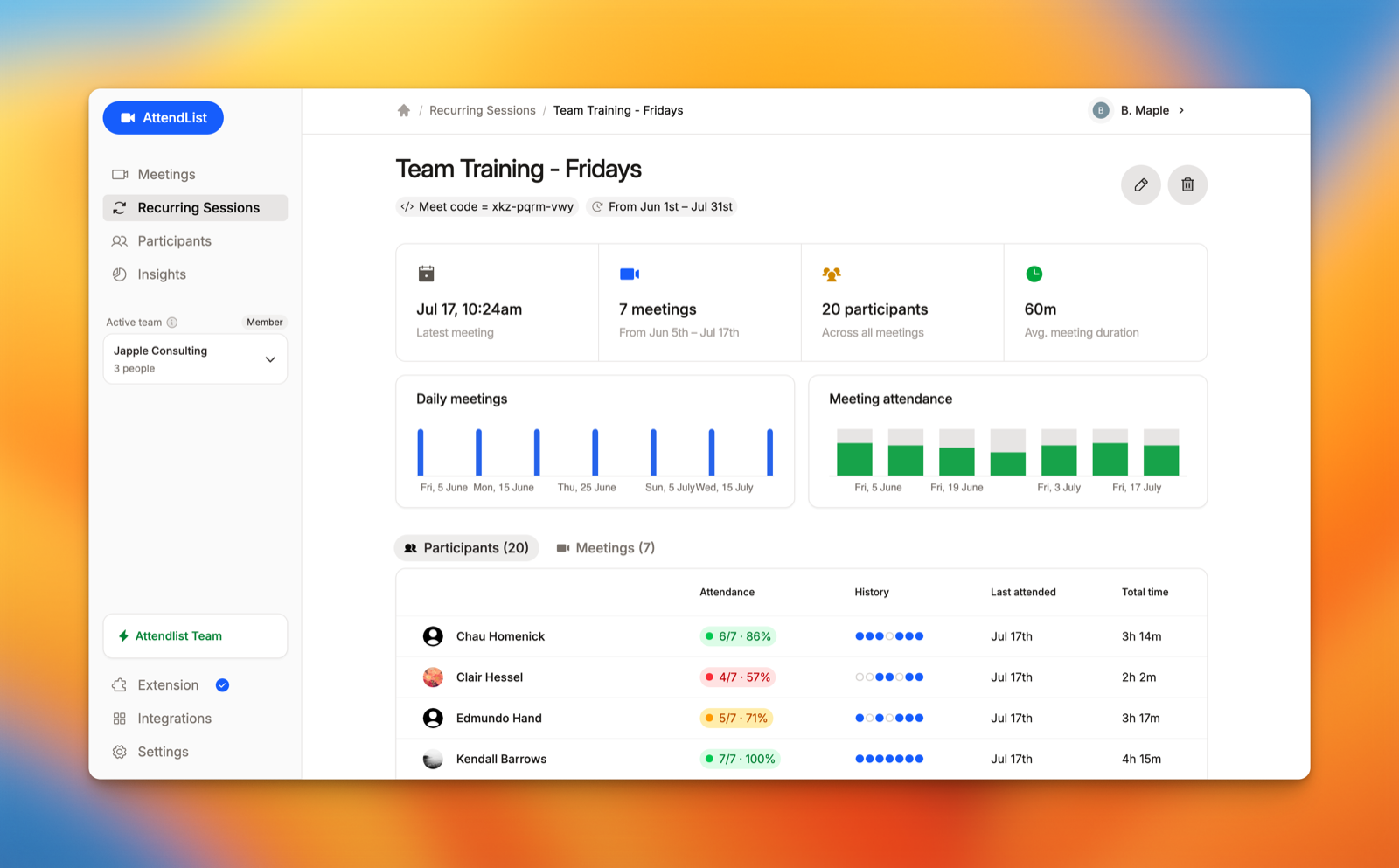
- Review attendance across the series. Each participant gets a row with their sessions attended (like 14/16 · 88%), a session-by-session history and their total time.
- Export or issue certificates. Export any meeting's report as a CSV, or issue attendance certificates straight from the recurring session, for example to everyone at 80% or above.
Past meetings are included as soon as you create the session, and new ones are added as they're recorded. The recurring sessions help page has the full details.
Two limits to know about:
- No whole-series export yet. Exports are per meeting, or several meetings at once.
- The free plan keeps 14 days of history and one recurring session. That's enough to try it on a weekly class. A full eight-week course needs Pro, which has unlimited history.

Track attendance automatically with AttendList
Connect your Google account once, and AttendList records attendance in every Google Meet you join.
How to calculate attendance across a course
There are two ways to measure attendance, and they can disagree:
- Session-based counts the sessions someone joined: sessions attended ÷ sessions held.
- Duration-based counts the time they were actually there: minutes attended ÷ minutes held.
Take Farah, in a course of eight 60-minute sessions. She joined all eight, but stayed only 40, 35 and 25 minutes for three of them:
| Rule | Calculation | Farah's attendance |
|---|---|---|
| Session-based: joined at all | 8 of 8 sessions | 100% |
| Duration-based: total time | 400 of 480 minutes | 83% |
| Session-based with a minimum: 75% of each session | 5 of 8 sessions | 63% |
Same person, but three different answers!
Pick one rule before the course starts and tell participants, especially if a certificate or a pass mark depends on it.
In AttendList, a recurring session's percentage is session-based: joining for any length of time counts. Each participant's total time is shown alongside it.
Common problems and edge cases
- Someone joins and leaves repeatedly. Google's report shows one row per person with their overall duration, not each rejoin. That's fine for session-based attendance. To see when they were gone, you need a tool that records every join and leave, as AttendList does.
- A participant changes their display name. Match on email, never on name. AttendList matches signed-in people by their Google account, so a new display name doesn't split them in two. Guests who aren't signed in can't be matched reliably by either method.
- The tutor starts late. A report covers the time the meeting actually ran. If a 60-minute class starts 10 minutes late, nobody can have more than 50 minutes.
- The same Meet link is reused for different classes. Matching by Meet code merges them. In Sheets, keep a file per class. In AttendList, match by meeting title, or use start and end dates to separate cohorts.
- Participant emails are missing. Google doesn't always share an email, particularly for guests. Ask participants to join signed in to the account on your roster.
Which method should you choose?
| Google's reports alone | Google Sheets method | AttendList | |
|---|---|---|---|
| Cost | Requires a paid Google Workspace edition | Free, but needs Google's paid reports | Free plan, Pro $14/user/mo |
| Works on free Gmail | No | No (it relies on Google's reports) | Yes |
| Work per session | None | A few minutes of pasting | None |
| Attendance across sessions | No | Yes | Yes |
| Leave and rejoin detail | No | No | Yes |
| Whole-series export | No | It's already a spreadsheet | Not yet |
Use Google's reports alone if you run a handful of one-off meetings and only ever ask "who came to this one?".
Use the Google Sheets method if you have a supported Workspace edition, one or two courses, and are willing to spend some time after each meeting updating it. It costs nothing extra, and you control the rules.
Use AttendList if you run several recurring classes, don't have a Workspace edition with attendance tracking, or don't want a weekly admin task. Keep a roster alongside it if you need to catch people who never join.
Track attendance automatically with AttendList
Connect your Google account once, and AttendList records attendance in every Google Meet you join.
Related guides
- How to track attendance for online tutoring sessions
- How to create certificates of attendance for online training
- How to get a Google Meet attendance report
- The best Google Meet attendance trackers, tested and compared
- Recurring sessions in AttendList
Frequently asked questions
Does Google Meet combine attendance for a recurring meeting?
No. Google Meet's built-in attendance tracking produces one Google Sheet per meeting and emails it to the organizer. There is no built-in view of one person's attendance across a recurring meeting, so you either combine the sheets yourself or use a tool that groups the meetings for you.
Do I have to turn on attendance tracking for every session of a recurring meeting?
Usually not. Google says the attendance tracking setting is saved for the next scheduled meeting when the meeting is recurring or reuses the same meeting code. You still receive a separate report after each session.
How do I know who missed a session?
A Google Meet attendance report only lists people who joined, so absences never appear in it. You need a roster of everyone who was expected, then compare each session's report against it. Anyone on the roster who isn't in the report was absent.
What counts as attending a session?
That is your decision, and it's worth writing down before the course starts. The simplest rule is that anyone who joined counts as present. A stricter rule requires a minimum time, for example at least 75% of the session. The two rules can give very different attendance percentages for the same person.
About the author
Harrison Broadbent
Harrison is the creator of AttendList, an attendance management system for Google Meet. As the founder, he builds the product, answers the support chat... and writes these guides!