Send Google Meet attendance to Google Sheets and email
Automatically upload each attendance report to Google Drive, and receive it by email, after every meeting.
On the Pro plan, AttendList can upload each attendance report to Google Drive and email it to you after every meeting. Set both up on your Integrations page.
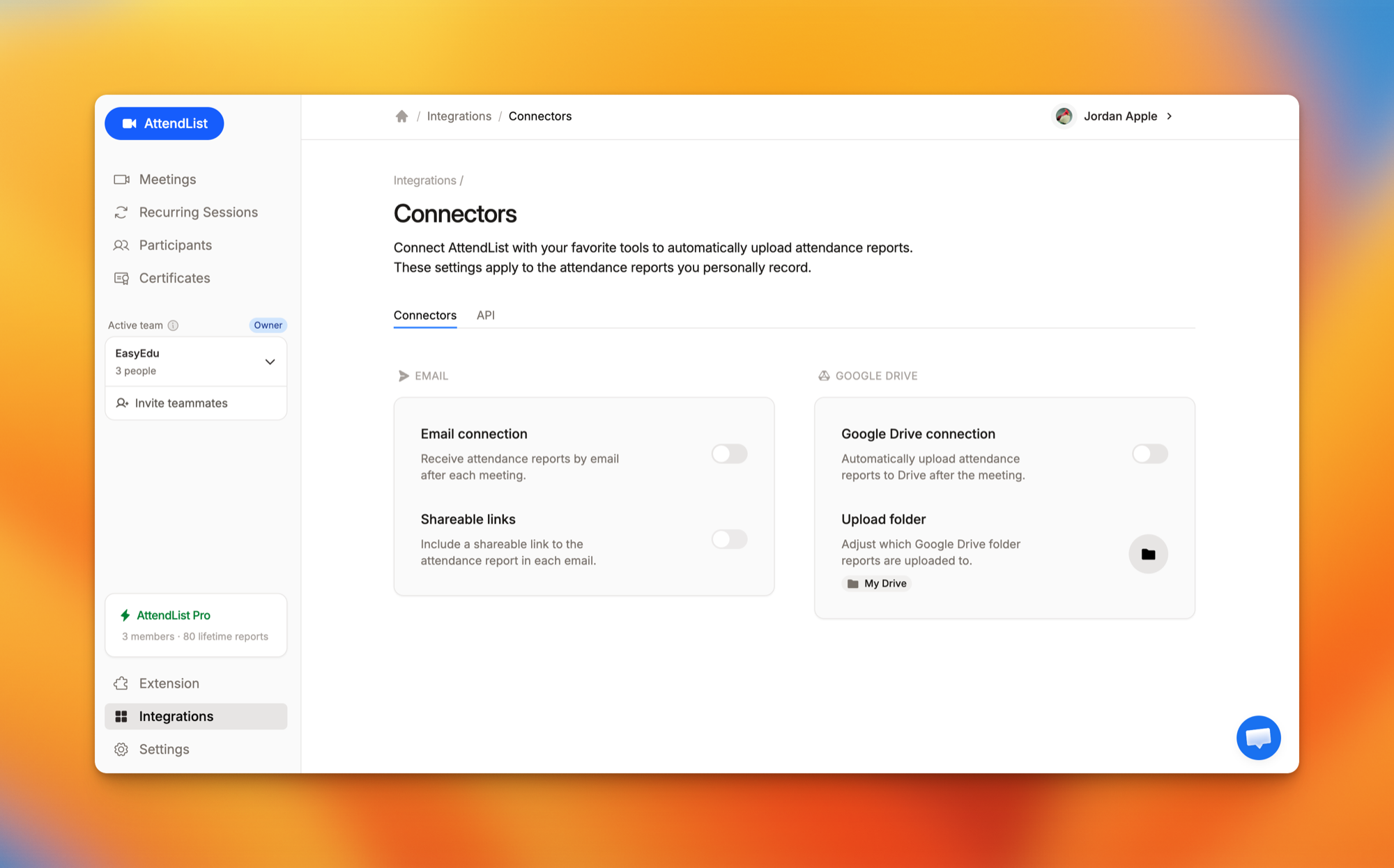
Upload reports to Google Drive
- Open your Integrations page.
- Click "Connect Google Drive" and grant the permission.
- Turn on Google Drive connection.
- Under Upload folder, pick the Drive folder your reports should go to.
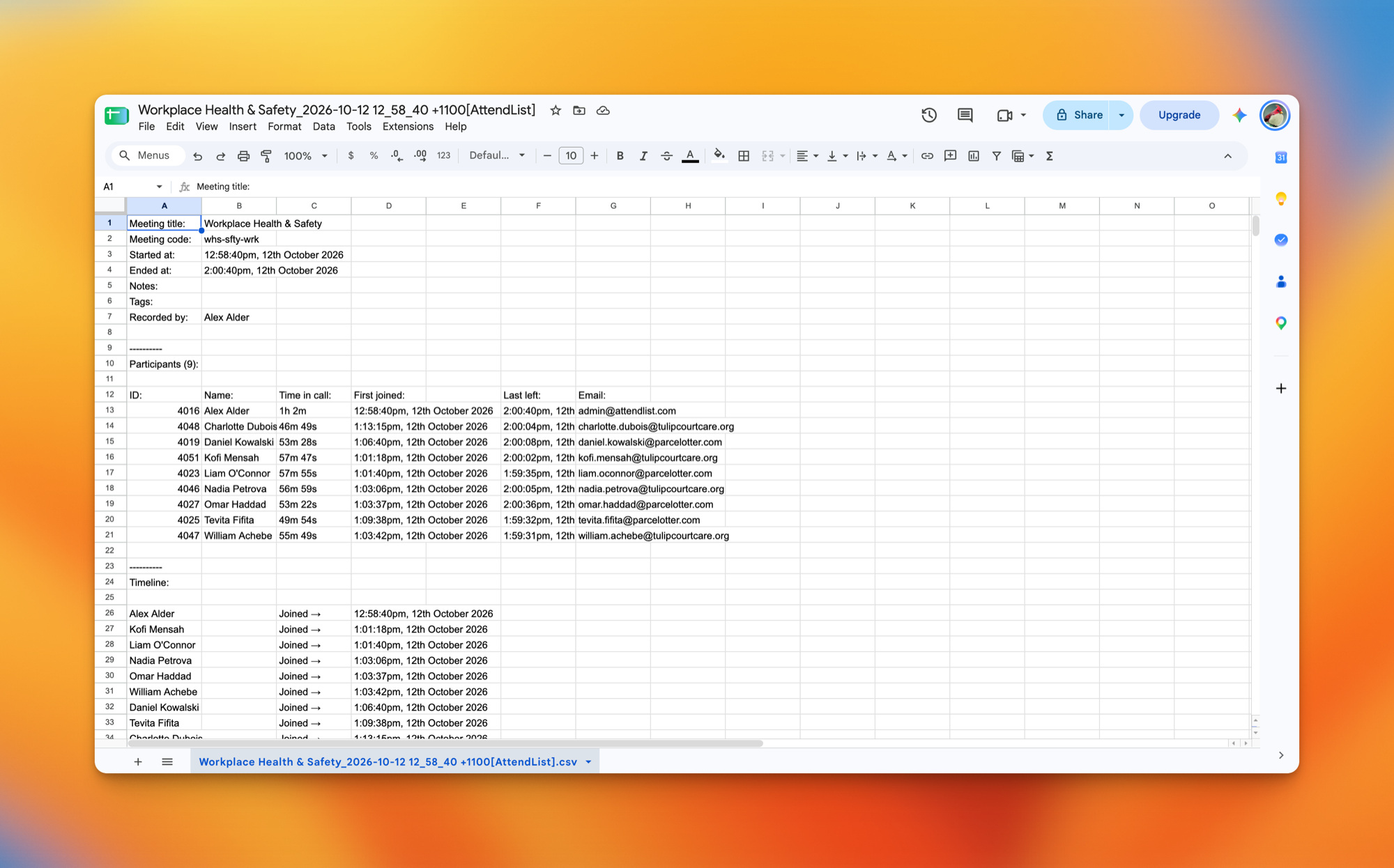
After each meeting, the report is saved to that folder as a Google Sheet and a PDF.
Receive reports by email
- Open your Integrations page.
- Turn on Email connection to receive each attendance report by email.
- Optionally, turn on Shareable links to include a shareable link to the report in each email.
Related
Frequently asked questions
Can AttendList send attendance reports to Google Sheets automatically?
Yes. On the Pro plan, turn on the Google Drive connection and AttendList saves each attendance report to a Drive folder you choose, as a Google Sheet and a PDF.
Can I get the attendance report by email after each meeting?
Yes. On the Pro plan, turn on the Email connection to receive each attendance report by email, optionally with a shareable link to the report.
Do these settings apply to my whole team?
No. Each person sets up their own connectors, and they apply to the attendance reports that person records. Team members can upload to different folders.